
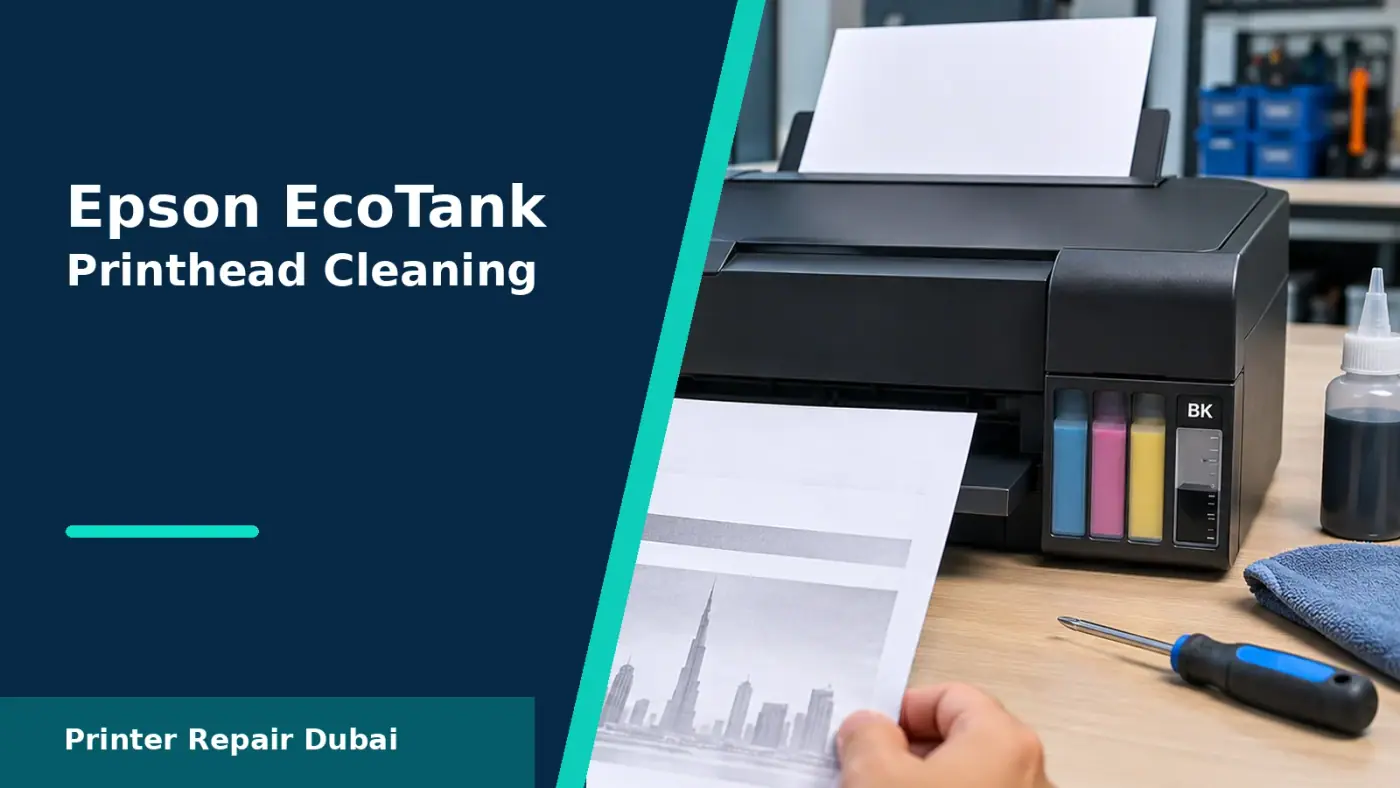
Printhead cleaning helps when an Epson EcoTank nozzle pattern contains missing lines or colour blocks, but it is not a general repair button for every print problem. Running it over and over can use a surprising amount of ink. The best approach is to print a nozzle check, choose the least aggressive maintenance option and look for measurable improvement.
Quick answer: what to check first
Print a nozzle-check pattern from the printer Maintenance menu or Epson utility. If the pattern is broken, run the standard head-cleaning routine recommended for your specific EcoTank model, then print another check. Stop after the manufacturer’s allowed attempts, and reserve Power Cleaning for the situations described in its guide.
Do not replace parts from a symptom alone. A small controlled test is more useful than changing several settings at once. If you see smoke, smell burning, find exposed wiring or hear a mechanism forcing itself against an obstruction, stop using the printer and arrange a qualified inspection.
Before you start: collect four details
- The full make and model on the device label. Printers with similar-looking names often have different parts and maintenance menus.
- The exact error text or code, including the last digits. A phone photo is enough and avoids transcription mistakes.
- One printer-generated status or quality page, if the machine can produce it. This distinguishes device behaviour from the computer.
- A short history: when the fault started, whether it follows a refill, move, router change, firmware update or paper jam, and whether it happens every time.
What the symptoms usually tell you
Faint horizontal white bands
Some nozzles may not be firing consistently, although media and quality settings also matter. This is a clue, not a final diagnosis. Compare the symptom against a test made directly on the printer before ordering parts or changing system settings.
One colour disappears completely
Compare each colour grid before assuming the printhead itself needs replacing.
Nozzle check is complete but photos look poor
Look at alignment, media selection and driver quality settings rather than repeated cleaning.
Printer sat unused for weeks or months
Dried ink or poor cap sealing may contribute to nozzle issues.
Cleaning makes no difference
A supply, capping, pump, air or electronic fault may require diagnosis beyond standard maintenance.
Step-by-step troubleshooting
1. Start with the EcoTank model code
Maintenance names and supported cleaning procedures differ. Download the correct manual rather than copying button presses from a different L-series or ET-series printer.
2. Make sure the printer is ready
Load plain paper, clear active errors and check that the ink supply is above the minimum required by the manual. Maintenance should not be started in the middle of a normal print job.
3. Print a nozzle-check pattern
Choose Nozzle Check from Maintenance or the Epson utility. The sheet contains expected black and colour patterns; store a photo of it to compare with the next check.
4. Read the pattern carefully
Missing dashes or broken grid sections suggest blocked or failing nozzles. A good pattern alongside poor-looking documents points instead to alignment, media, file or driver settings.
5. Perform standard head cleaning
Use only the built-in command and let the printer finish. The device controls ink flow through its own maintenance system; do not pull ink through the head using household tools.
6. Print another nozzle check
Compare the same colour rows after cleaning. If gaps narrow, maintenance is helping. If there is no improvement, do not keep repeating the routine indefinitely.
7. Follow Epson’s pause instructions
Some models advise waiting a specified period after repeated failed cleaning attempts. The waiting period and maximum sequence depend on the guide; apply those instructions exactly.
8. Understand Power Cleaning before using it
Power Cleaning, where available, draws more ink and may fill maintenance or waste-ink components sooner. Confirm the manual’s ink-level and preparation requirements before selecting it.
9. Check that no physical warning is present
A maintenance-box warning, ink-system error, carriage obstruction or abnormal mechanical noise needs attention. Cleaning cannot solve a damaged drive mechanism.
10. Avoid direct-contact DIY methods
Injecting solvent into tubes, soaking electrical assemblies or scraping a nozzle plate can damage the printhead, seals and circuitry. Home repair videos may omit important risks.
11. Test normal print quality after the nozzle check
Once the grid looks complete, print a small plain-paper sample using suitable quality settings. If output remains misaligned, look for a supported printhead alignment procedure.
12. Request diagnosis for persistent missing sections
A technician can check the capping station, pump and ink path before suggesting head replacement. The purpose is to avoid paying for an expensive head when another part is restricting ink flow.
Five common mistakes that make the problem harder to fix
- Running Power Cleaning as the first troubleshooting step. A controlled test and the official model guide are safer than guessing; document the original condition before changing anything.
- Judging progress without printing a new nozzle pattern.
- Using incompatible ink or unknown chemicals in a printhead.
- Turning off the printer during its cleaning cycle.
- Assuming missing colours always mean the head electronics have failed.
What a professional diagnosis should include
A controlled EcoTank diagnosis starts with a printed nozzle pattern and maintenance history, then checks ink supply and maintenance mechanisms where necessary. The capping station must seal correctly for cleaning to work. A printhead should not be declared defective solely because one cleaning cycle failed.
Ask for the technician to state what was observed, what tests were performed and which parts, if any, actually need replacing. A written estimate should identify inspection charges, labour, parts, taxes and warranty terms before the job is approved. The goal is to repair the original problem and verify it with another test, not simply clear the warning on the screen.
For a Dubai office, tell the service provider whether the printer is used by one person or connected to a shared network. If it is a larger copier, plotter or departmental printer, specify where the unit is installed and whether normal printing, copying, scanning and duplex functions need to be tested after repair. This helps plan a useful site visit.
When to repair and when to replace
A repair often makes sense when the machine is suitable for the workload and the diagnosed fault can be corrected with an available part or a controlled adjustment. A replacement may be more sensible when several expensive systems have failed, the device is no longer supported, or its running cost is already much higher than a suitable alternative.
Compare the full quoted price and any downtime against the cost of a replacement with comparable speed, paper capacity, connectivity and ink or toner usage. Avoid deciding solely from the price of the cheapest new printer. An office model may be expensive to replace even when a smaller desktop printer looks cheaper in an advertisement.
How to reduce the chance of the same fault returning
- Use the printer regularly in line with Epson operating advice.
- Shut down using the device power button so the head can park normally.
- Keep correct model-specific ink available for refills.
- Print a nozzle check when quality first changes, not after dozens of failed prints.
- Protect the printer from dust, direct sun and unsuitable storage temperatures.
Maintenance should fit the printer type and the manufacturer instructions. Inkjet cleaning routines, laser maintenance kits and network settings are not interchangeable. Keep a simple record of the last service, the consumable type used and any recurring error codes. That is usually more helpful than performing an aggressive clean after every print-quality change.
Frequently asked questions
How many times should I clean an Epson EcoTank printhead?
Follow the exact model guide. The recommended cleaning sequence and waiting period differ across models.
Will cleaning use ink?
Yes. Standard cleaning uses ink, and power cleaning uses more; do not run it without a reason.
What if my nozzle check is perfect but the print is blurry?
Check media, quality settings and printhead alignment instead of repeatedly cleaning.
Can a clogged nozzle damage an Epson printer?
Persistent clogs affect print quality, but invasive cleaning methods can create more damage than the original fault.
Does a full tank mean the nozzles work?
No. Ink must still reach the printhead and fire through open nozzles.
Is Epson printhead repair offered in Dubai?
Printer Repair Dubai advertises Epson repairs. Bring or send the nozzle-check results and the exact EcoTank model.
Printer repair help in Dubai
If these checks do not solve the problem, Printer Repair Dubai lists support for home and office printers, including on-site service. When you contact the team, share your printer model, a photo of the error or defective printout, and the steps you already tried. That makes the conversation more useful and helps avoid repeating unnecessary tests.