
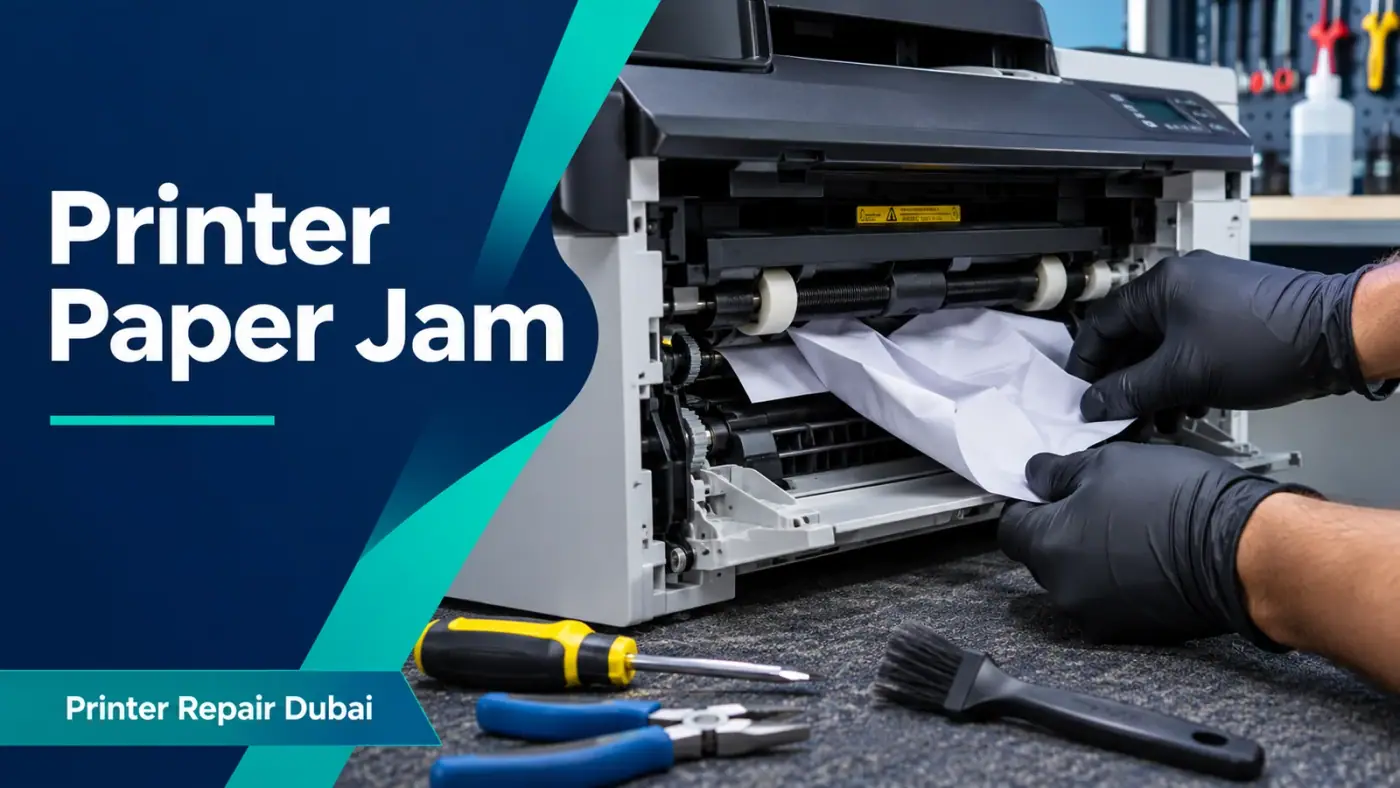
One sheet jams, you pull it out, then the next one jams in the same place. That pattern matters. The first blockage may be a wrinkled page, but repeated jams often point to a pickup, separation, sensor or paper-path issue that needs more than pulling out another sheet.
Quick answer: what to check first
Switch the printer off when its manual instructs you to, allow hot laser components to cool, and remove visible paper gently in the direction recommended by the manufacturer. Check for small torn fragments, use the correct paper and try one sheet. If it jams repeatedly at the same position, stop forcing pages through.
Do not replace parts from a symptom alone. A small controlled test is more useful than changing several settings at once. If you see smoke, smell burning, find exposed wiring or hear a mechanism forcing itself against an obstruction, stop using the printer and arrange a qualified inspection.
Before you start: collect four details
- The full make and model on the device label. Printers with similar-looking names often have different parts and maintenance menus.
- The exact error text or code, including the last digits. A phone photo is enough and avoids transcription mistakes.
- One printer-generated status or quality page, if the machine can produce it. This distinguishes device behaviour from the computer.
- A short history: when the fault started, whether it follows a refill, move, router change, firmware update or paper jam, and whether it happens every time.
What the symptoms usually tell you
Paper never leaves the tray
Think about pickup rollers, paper guides, media condition and separation problems. This is a clue, not a final diagnosis. Compare the symptom against a test made directly on the printer before ordering parts or changing system settings.
Paper stops just after feeding
An early feed sensor or registration section may be involved.
Paper jams near the output
On a laser printer, the exit path or fuser area may need professional attention.
Two or three sheets feed together
Check damp paper, incorrect media, worn separation pads and overfilled trays.
The printer reports a jam with no visible paper
A sensor, actuator or concealed scrap may be responsible.
Step-by-step troubleshooting
1. Note the exact location and message
Do not treat every paper jam as identical. Record the code and whether it occurs in Tray 1, duplex mode, the rear door or near the output. The location narrows the mechanical fault.
2. Turn off and follow model-specific safety instructions
Laser fusers may stay hot after printing and internal mechanisms can pinch fingers. Use the manufacturer’s jam-clear procedure and wait before accessing a hot section.
3. Remove the complete sheet carefully
Use two hands and pull slowly along the normal paper path where the manufacturer directs. Avoid yanking against rollers, cutting the sheet into fragments or using sharp objects inside the machine.
4. Search for torn scraps using a light
Inspect accessible doors, duplex path and roller areas. A small corner of paper can repeatedly trigger a sensor even when the main sheet has been removed.
5. Replace damaged or damp paper
Use a fresh, flat stack stored in a dry environment. Paper that has absorbed moisture can curl or feed unevenly; labels, envelopes and thick card require the correct media path and settings.
6. Reset tray guides and paper size
Side guides should touch the stack without bending it. Set the tray size and paper type to match the sheets. A mismatch may cause the printer to feed or time the page incorrectly.
7. Do not overfill the input tray
Stay below the maximum-fill marker. In multi-sheet feeders, the condition of the stack and the separation mechanism determines whether one page or several are picked at once.
8. Try simplex before duplex
If ordinary one-sided printing works but double-sided pages jam, investigate the duplex module and reverse paper path. Do not dismantle the duplex drive without service instructions.
9. Test an alternate tray if available
A printer that jams from only one tray may have a tray-specific pickup, separation or feed issue. Compare under the same print settings to avoid confusing paper settings with hardware.
10. Inspect only accessible rollers
Dusty or glazed pickup rollers may fail to grip paper. Clean only using a method permitted by your printer manufacturer; harsh solvents can damage rubber roller surfaces.
11. Watch the jam repeat pattern
If paper always stops at the same point or one roller clicks without turning, a gear, clutch, sensor or drive issue becomes more likely. Avoid feeding large batches to “see if it clears”.
12. Ask for diagnosis when it repeats
A technician can inspect wear parts and sensors and perform controlled feed tests. Repeated paper jams can crease documents, shed paper debris and worsen an existing fault.
Five common mistakes that make the problem harder to fix
- Pulling paper backwards against the recommended feed direction. A controlled test and the official model guide are safer than guessing; document the original condition before changing anything.
- Using a knife or screwdriver to reach a tiny paper scrap.
- Loading mixed or damp paper types in one tray.
- Ignoring repeated jams in the exact same spot.
- Opening hot fuser hardware immediately after printing.
What a professional diagnosis should include
Service checks depend on the jam position. A technician may compare pickup roller wear, separation pad condition, registration sensor action, duplex path and exit mechanism. On some laser printers a fuser or drive assembly needs inspection; on some inkjets a carriage obstruction may be mistaken for a paper jam. The fault should be reproduced safely before parts are quoted.
Ask for the technician to state what was observed, what tests were performed and which parts, if any, actually need replacing. A written estimate should identify inspection charges, labour, parts, taxes and warranty terms before the job is approved. The goal is to repair the original problem and verify it with another test, not simply clear the warning on the screen.
For a Dubai office, tell the service provider whether the printer is used by one person or connected to a shared network. If it is a larger copier, plotter or departmental printer, specify where the unit is installed and whether normal printing, copying, scanning and duplex functions need to be tested after repair. This helps plan a useful site visit.
When to repair and when to replace
A repair often makes sense when the machine is suitable for the workload and the diagnosed fault can be corrected with an available part or a controlled adjustment. A replacement may be more sensible when several expensive systems have failed, the device is no longer supported, or its running cost is already much higher than a suitable alternative.
Compare the full quoted price and any downtime against the cost of a replacement with comparable speed, paper capacity, connectivity and ink or toner usage. Avoid deciding solely from the price of the cheapest new printer. An office model may be expensive to replace even when a smaller desktop printer looks cheaper in an advertisement.
How to reduce the chance of the same fault returning
- Store paper sealed in a cool, dry indoor place.
- Fan and align the stack only as recommended by the printer manual.
- Use suitable media rather than forcing thick card through a paper path designed for plain paper.
- Clean trays and accessible pickup areas according to the maintenance guide.
- Report unusual feed noises before paper starts tearing.
Maintenance should fit the printer type and the manufacturer instructions. Inkjet cleaning routines, laser maintenance kits and network settings are not interchangeable. Keep a simple record of the last service, the consumable type used and any recurring error codes. That is usually more helpful than performing an aggressive clean after every print-quality change.
Frequently asked questions
Why does my printer keep jamming with good paper?
Pickup rollers, separators, sensors or the paper path may be at fault even if the paper looks fine.
Can a tiny paper scrap cause a jam warning?
Yes. Small fragments can obstruct a paper sensor or remain in the feed path.
Is it safe to pull paper out of a laser printer?
Follow the exact jam-clear instructions and allow hot components to cool. Do not reach into the fuser with tools.
Why does paper jam only when printing double-sided?
The duplex path, media type and reverse-feed mechanism are common areas to check.
Do I need to replace the printer for repeated jams?
Not automatically. A worn feed component may be repairable. Compare the diagnosis and quote with replacement value.
Can I request printer paper jam repair in Dubai?
Yes. Send the brand, model, jam location and error code when contacting Printer Repair Dubai.
Printer repair help in Dubai
If these checks do not solve the problem, Printer Repair Dubai lists support for home and office printers, including on-site service. When you contact the team, share your printer model, a photo of the error or defective printout, and the steps you already tried. That makes the conversation more useful and helps avoid repeating unnecessary tests.


