
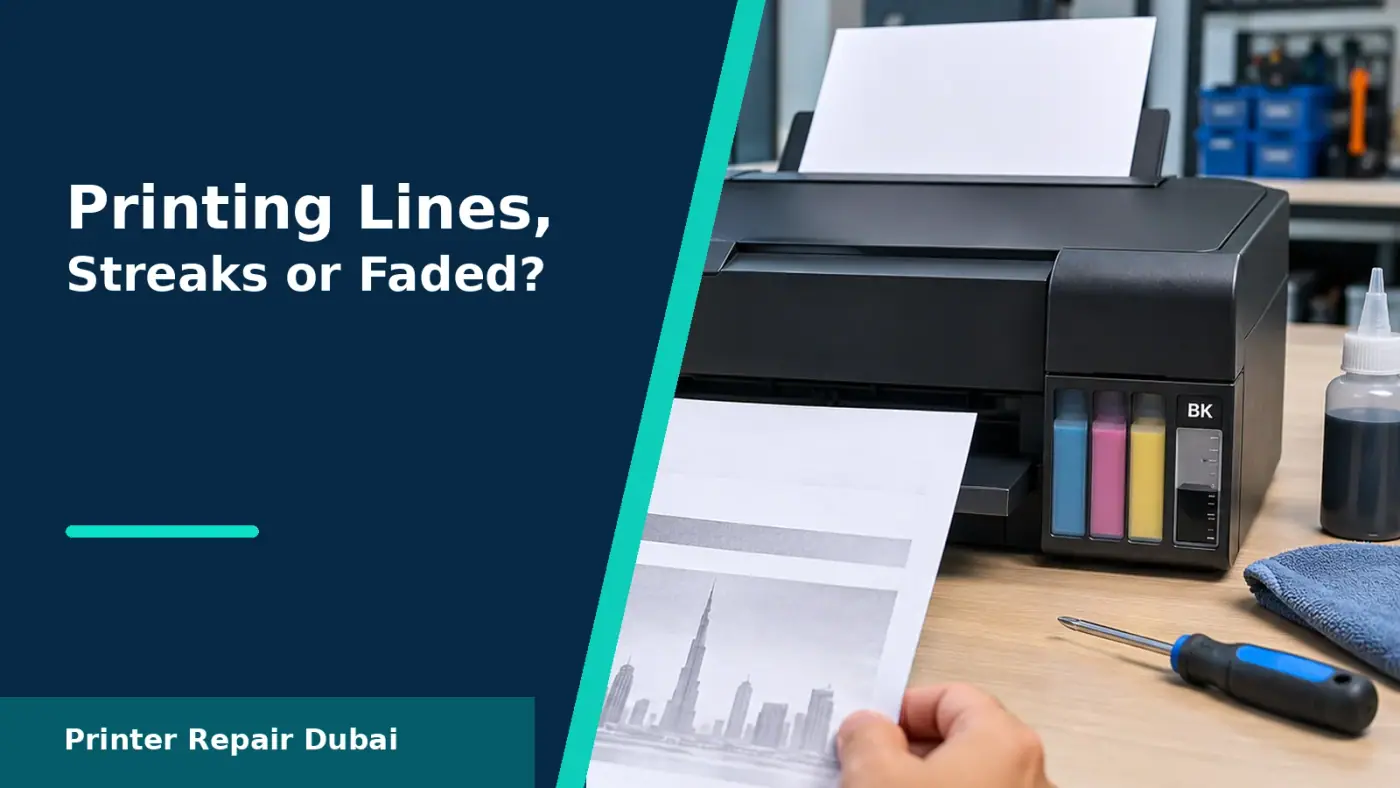
A line on every printed page is a clue, especially when it appears in the same location. Horizontal bands on an inkjet can indicate missing nozzles. Vertical streaks on a laser printer may come from its toner, drum, cleaning or transfer process. Faded text can also be caused by settings and supplies, so the direction of the defect matters.
Quick answer: what to check first
Print a built-in quality test and keep the page. Note whether the mark is horizontal, vertical, repeated at regular intervals or limited to one colour. For inkjets start with a nozzle check and alignment where recommended; for laser printers use the model’s print-quality guide and inspect approved consumables.
Do not replace parts from a symptom alone. A small controlled test is more useful than changing several settings at once. If you see smoke, smell burning, find exposed wiring or hear a mechanism forcing itself against an obstruction, stop using the printer and arrange a qualified inspection.
Before you start: collect four details
- The full make and model on the device label. Printers with similar-looking names often have different parts and maintenance menus.
- The exact error text or code, including the last digits. A phone photo is enough and avoids transcription mistakes.
- One printer-generated status or quality page, if the machine can produce it. This distinguishes device behaviour from the computer.
- A short history: when the fault started, whether it follows a refill, move, router change, firmware update or paper jam, and whether it happens every time.
What the symptoms usually tell you
Horizontal white bands in inkjet colour
A nozzle-check pattern can reveal missing jets or irregular firing. This is a clue, not a final diagnosis. Compare the symptom against a test made directly on the printer before ordering parts or changing system settings.
Vertical dark line on a laser page
A toner or imaging component may be contaminated or damaged.
Very light output across the whole page
Check draft settings, toner or ink levels and relevant imaging parts.
The same mark repeats down the sheet
A rotating roller or drum surface may be producing a periodic defect.
Only scans or copies show lines
The scanner glass or narrow automatic document feeder scan strip may need inspection, not necessarily the print engine.
Step-by-step troubleshooting
1. Save a clear sample sheet
Print one page with text and blocks of colour if the printer supports them. Avoid relying on phone descriptions such as “bad printing”; the sample shows shape, location and colour.
2. Separate printing from scanning
Print a computer-generated page and copy a clean original. A line only on copied or scanned documents can point towards dirt or a mark on the scanner glass or feeder strip.
3. Identify inkjet versus laser technology
Inkjet models place liquid ink through tiny nozzles. Laser printers use toner and rotating imaging components. Their defects can look similar but call for different tests.
4. Check the print-quality settings
Turn off draft or economy mode for a controlled sample. Set paper type correctly. If quality returns, the device may not require repair.
5. Run the inkjet nozzle check
For Epson, Brother and Canon inkjets, use the maker’s pattern test. Broken rows or absent colours provide a reason to follow the approved cleaning sequence.
6. Check printhead alignment after nozzle health
If patterns print without gaps but lines or text are misaligned, use the printer’s alignment routine where the model offers it. Alignment is not a substitute for restoring missing nozzles.
7. Inspect laser consumable status
Low or uneven toner, a damaged imaging drum or a leaking cartridge can contribute to faded or streaked output. Handle cartridges only as the manufacturer directs.
8. Look for fixed repeating defects
A mark repeating at similar intervals can indicate a rotating component. Do not measure or touch heated rollers while the printer is open; retain the printed evidence for service.
9. Use the correct paper for the job
Coated, damp or unsuitable media may not accept ink or toner as expected. Try fresh manufacturer-supported plain paper to separate media quality from a printer defect.
10. Compare the first page with later pages
If quality changes as a laser machine warms up or as several inkjet pages print, note that pattern. It may help identify an intermittent supply or mechanical condition.
11. Clean only user-serviceable parts
Dust on scanner glass can be safely addressed using the manual’s method, but internal optical assemblies, transfer belts and fusers should not be handled casually.
12. Ask for diagnosis if the fault remains
A technician can compare the defect against a printer quality report and check the appropriate imaging or ink path. Replacing several parts at once is rarely a good substitute for a measured test.
Five common mistakes that make the problem harder to fix
- Calling every vertical line a clogged printhead. A controlled test and the official model guide are safer than guessing; document the original condition before changing anything.
- Cleaning hot laser components with liquids or tools.
- Using draft mode as the reference when judging print quality.
- Replacing ink or toner without running an internal quality page.
- Ignoring that dirty scanner glass can cause lines on copies only.
What a professional diagnosis should include
On an inkjet, service may involve nozzle output, alignment and ink flow. On laser equipment, a technician may examine toner, drum, transfer and fusing components. For lines that appear only on copies, scanner glass and the document-feeder scan path should be checked before replacing print-engine parts.
Ask for the technician to state what was observed, what tests were performed and which parts, if any, actually need replacing. A written estimate should identify inspection charges, labour, parts, taxes and warranty terms before the job is approved. The goal is to repair the original problem and verify it with another test, not simply clear the warning on the screen.
For a Dubai office, tell the service provider whether the printer is used by one person or connected to a shared network. If it is a larger copier, plotter or departmental printer, specify where the unit is installed and whether normal printing, copying, scanning and duplex functions need to be tested after repair. This helps plan a useful site visit.
When to repair and when to replace
A repair often makes sense when the machine is suitable for the workload and the diagnosed fault can be corrected with an available part or a controlled adjustment. A replacement may be more sensible when several expensive systems have failed, the device is no longer supported, or its running cost is already much higher than a suitable alternative.
Compare the full quoted price and any downtime against the cost of a replacement with comparable speed, paper capacity, connectivity and ink or toner usage. Avoid deciding solely from the price of the cheapest new printer. An office model may be expensive to replace even when a smaller desktop printer looks cheaper in an advertisement.
How to reduce the chance of the same fault returning
- Use quality media compatible with the printer.
- Store toner and ink according to the supplier instructions.
- Keep scanner glass and exposed paper trays clean using approved methods.
- Run a test pattern before making changes to several settings.
- Keep sample pages showing the defect and note whether it repeats.
Maintenance should fit the printer type and the manufacturer instructions. Inkjet cleaning routines, laser maintenance kits and network settings are not interchangeable. Keep a simple record of the last service, the consumable type used and any recurring error codes. That is usually more helpful than performing an aggressive clean after every print-quality change.
Frequently asked questions
Why is my printer printing horizontal lines?
On an inkjet, missing nozzles or alignment issues are common possibilities. Start with the model’s nozzle-check pattern.
Why do vertical black lines appear on laser prints?
A toner, drum, transfer or cleaning component may be responsible; the consistent line location helps diagnosis.
How do I fix faded printer text?
Check print quality mode, supplies and a printer-generated test page. The remedy depends on inkjet or laser technology.
Why do lines appear only on photocopies?
The scanner or automatic document feeder glass can have a mark that is copied into the image.
Should I clean my printer inside?
Only clean user-serviceable areas using the official maintenance method. Laser fusers and electrical assemblies can be unsafe.
Can streaked printing be repaired in Dubai?
Printer Repair Dubai lists print-quality and consumable-related repair services. Share a sample page and printer model before booking.
Printer repair help in Dubai
If these checks do not solve the problem, Printer Repair Dubai lists support for home and office printers, including on-site service. When you contact the team, share your printer model, a photo of the error or defective printout, and the steps you already tried. That makes the conversation more useful and helps avoid repeating unnecessary tests.